Important
La traduction est le fruit d’un effort communautaire auquel vous pouvez vous joindre. Cette page est actuellement traduite à 41.96%.
21.1. Aperçu du Système d’authentification
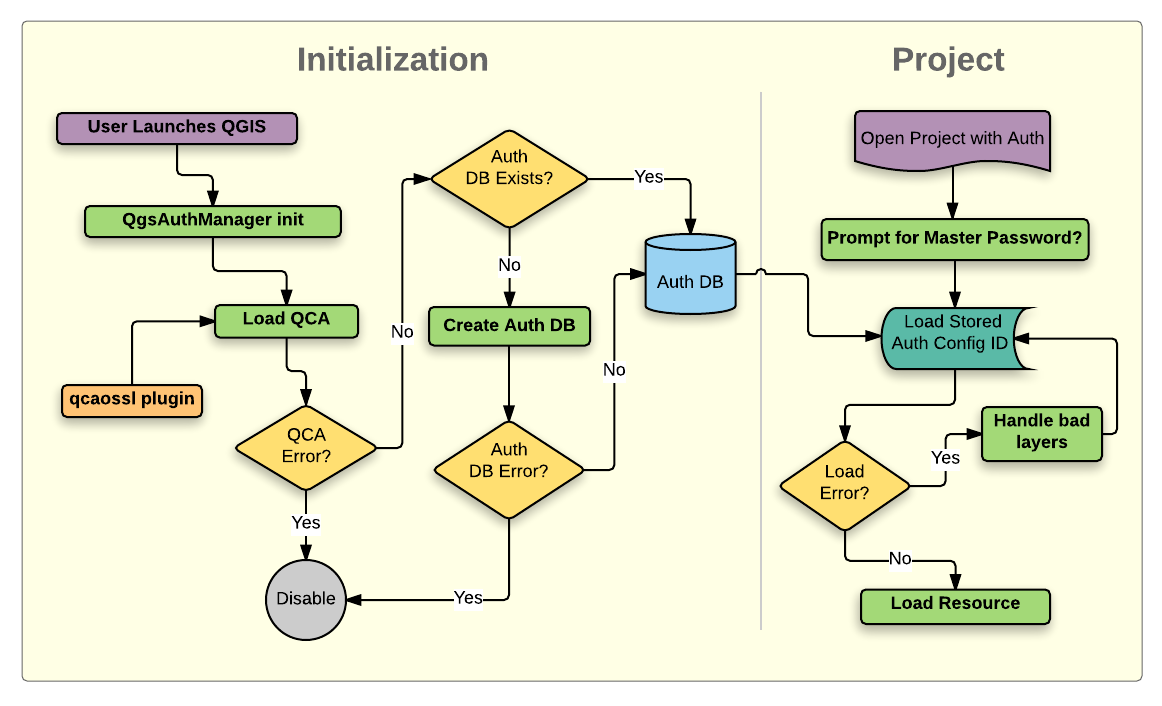
Fig. 21.1 Anatomie du Système d’authentification
21.1.1. Base de données d’authentification
Le système d’authentification stocke les configurations d’authentification dans une base de données SQLite situé, par défaut, sous <profile directory>/qgis-auth.db.
Cette base de données d’authentification peut être déplacée entre les différentes installations de QGIS sans affecter les autres préférences utilisateur, car elle est complètement indépendante des paramètres de QGIS. Un ID de configuration (une chaîne aléatoire de 7 caractères alphanumériques) est généré lors du stockage de la configuration dans la base de données. Cela permet à l’ID d’être stocké dans des composants plein texte (tels que des projets, des plugins ou des fichiers de paramètres), sans que les informations d’identification y figurent.
Note
Le dossier contenant la base qgis-auth.db peut être défini dans la variable d’environnement QGIS_AUTH_DB_DIR_PATH, ou dans la ligne de commande utilisée lors du lancement avec l’option --authdbdirectory .
21.1.2. Bases de données d’authentification spécifique
QGIS can be configured to use a custom authentication database instead of the above mentioned default SQLite one: any database supported by the Qt SQL module can be used (e.g. PostgreSQL, MySQL, etc), provided that the corresponding Qt SQL driver is available in the system.
This can be useful in scenarios where a user wants to share the same authentication database between multiple QGIS installations, or when a user wants to use a different authentication database than the default SQLite one or when a centralized authentication database is used by QGIS server.
The only way to configure a custom authentication database is by setting the
QGIS_AUTH_DB_URI environment variable to the URI of the connection, the URI
is in the form of driver://username:password@hostname:port/database?options.
- Où:
driveris the name of the Qt SQL driver to use, e.g.QPSQLfor PostgreSQL,QMYSQLfor MySQL, etc.usernameis the username to use to connect to the databasepasswordis the password to use to connect to the databasehostnameis the hostname of the database serverportis the port of the database serverdatabaseis the name of the database to useoptionsare the options to pass to the driver, e.g.sslmode=requirefor PostgreSQL
Note
The schema can be specified in the URI options, e.g. QPSQL://username:password@hostname:port/database?schema=schema_name
The database must exist before starting QGIS, and the user must have the necessary permissions to connect to the database and to create the required tables if they do not exist.
Avertissement
The password in the URI is stored in plain text in the environment variable, so it is recommended to use a passwordless user or a user with limited permissions to connect to the database.
Avertissement
Any database not based on SQLite is considered to be read-only (this can be changed by Python plugins if necessary).
This is an advanced feature, designed to allow one or more custom authentication databases or even custom Python implementations of credentials storages to be used by QGIS.
The system is also designed to allow for multiple authentication databases to be used but there is currently no user facing interface to manage multiple credential storages so its usage requires manual configuration and management, typically from a Python plugin.
21.1.3. Mot de passe principal
Pour stocker ou accéder à des informations sensibles dans la base de données, un utilisateur doit définir un « mot de passe maître ». Un nouveau mot de passe maître est demandé et vérifié lors du stockage initial de toute donnée cryptée dans la base de données. Lorsque l’utilisateur accède à des informations sensibles, il est invité à saisir le mot de passe principal. Le mot de passe est alors mis en cache pour le reste de la session (jusqu’à ce que l’application soit fermée), à moins que l’utilisateur ne choisisse manuellement une action pour effacer sa valeur en cache. Certains cas d’utilisation du système d’authentification ne nécessitent pas la saisie du mot de passe maître, comme lors de la sélection d’une configuration d’authentification existante, ou de l’application d’une configuration à une configuration de serveur (comme lors de l’ajout d’une couche WMS).
Vous pouvez choisir de sauvegarder le mot de passe dans le Portefeuille/Porte-clé de votre ordinateur.
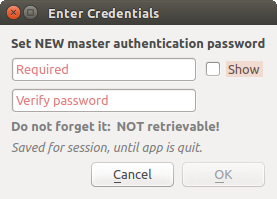
Fig. 21.2 Entrer un nouveau mot de passe principal
Note
Un chemin vers un fichier contenant le mot de passe principal peut être paramétré au moyen de la variable d’environnement suivante, QGIS_AUTH_PASSWORD_FILE.
21.1.3.1. Gestion du mot de passe principal
Une fois défini, le mot de passe principal peut être redéfini; le mot de passe courant sera demandé pour pouvoir en définir un nouveau. Pendant cette procédure, une option permet de générer une sauvegarde complète de la base de données.
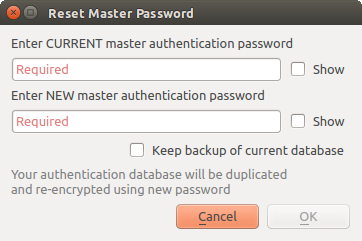
Fig. 21.3 Réinitialiser le mot de passe principal
Si l’utilisateur oublie le mot de passe principal, il n’existe aucun moyen de le retrouver ou de le contourner. Il n’est pas non plus possible de retrouver des informations cryptées dans le mot de passe principal.
Si un utilisateur saisi sont mot de passe trois fois de manière incorrecte, l’interface propose d’effacer le contenu de la base.
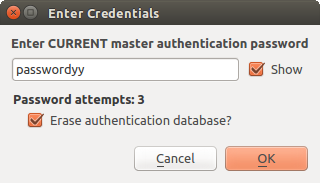
Fig. 21.4 Demande de mot de passe après trois tentatives invalides
21.1.4. Configuration de l’authentification
Les configurations d’authentification peuvent être gérées dans Configurations de l’onglet Authentification du dialogue Options de QGIS ().
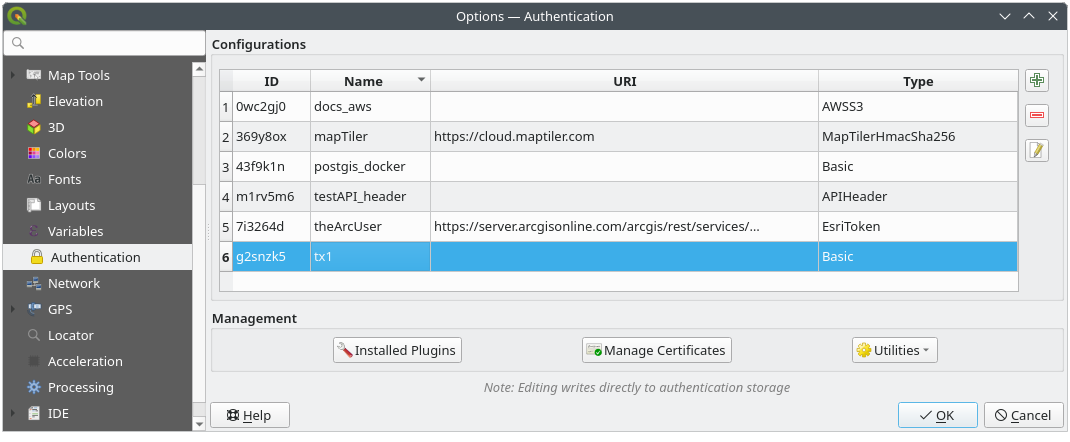
Fig. 21.5 Editeur de configuration
To create a new authentication configuration:
Press the
 Add a new authentication configuration
Provide a Name and optional Resource URL
A seven-characters ID will be assigned to the configuration for identification purpose. It can be customized after you pressed the
 Unlock to edit ID button.
Be aware that updating that ID may break things.
Unlock to edit ID button.
Be aware that updating that ID may break things.Select the target method and fill the corresponding connection details
Once done, click Save to save the configuration. The saved configuration appears in the list of authentication configurations and can be used with supported connections.
The saved configuration can later be edited using  Edit selected configuration
or removed using
Edit selected configuration
or removed using  Delete selected configuration.
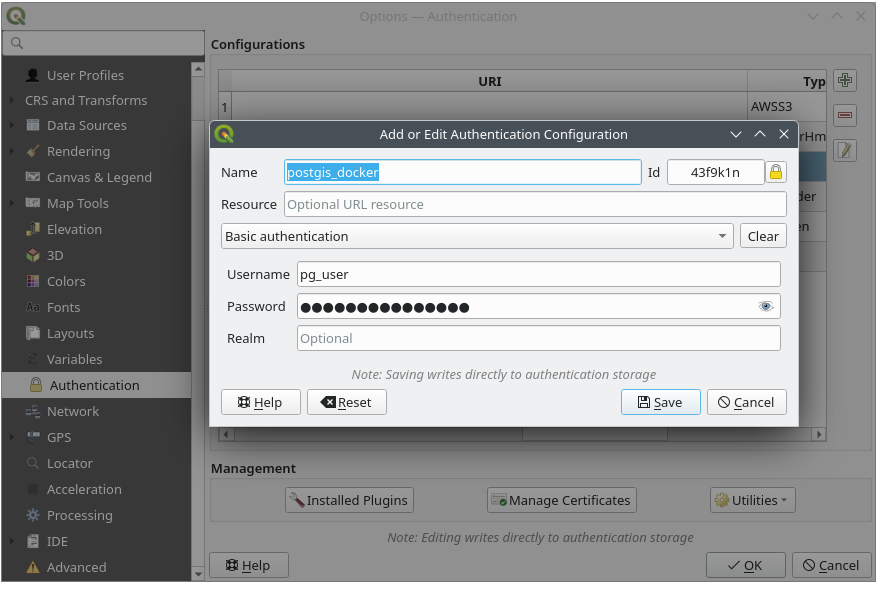
Fig. 21.6 Ajouter une configuration avec l’éditeur de configuration
The same type of operations for authentication configuration management (Add, Edit and Remove) can be done when configuring a given service connection, such as configuring an OWS service connection. For that, there are action buttons within the configuration selector for fully managing configurations found within the authentication database. In this case, there is no need to go to the configurations in Authentication tab of QGIS options unless you need to do more comprehensive configuration management.
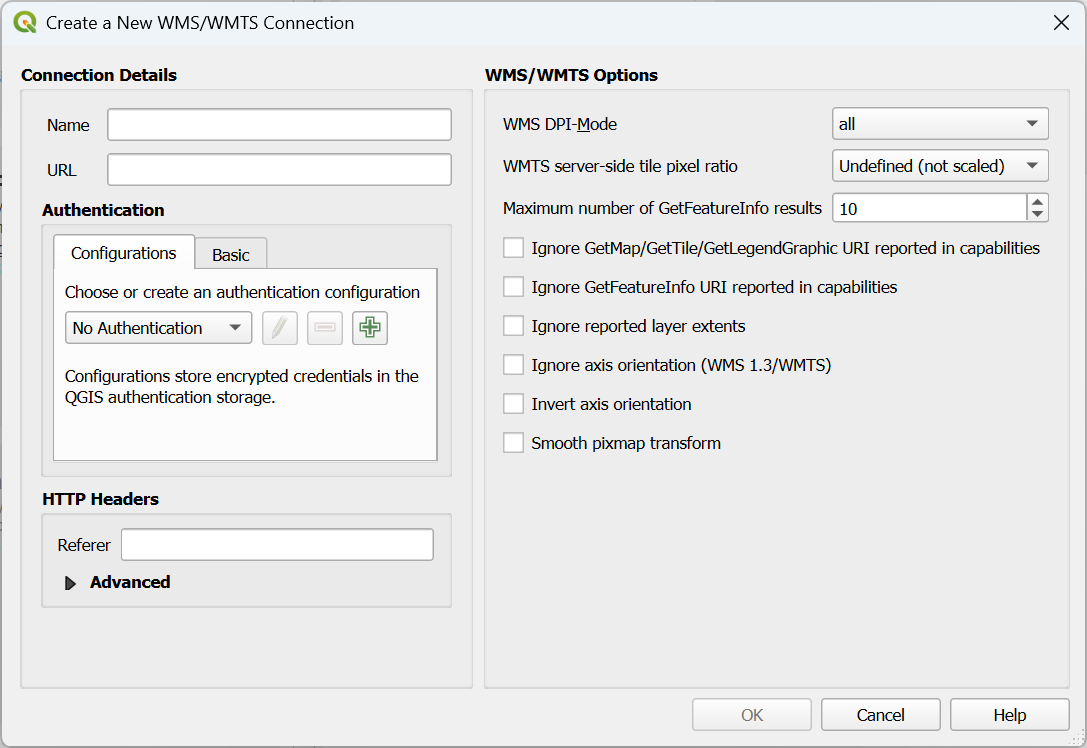
Fig. 21.7 WMS connection dialog showing authentication configuration widget
Lors de la création ou de la modification d’une configuration d’authentification, les informations à fournir sont un nom, une méthode d’authentification et toute autre information requise par la méthode ( pour d’avantage d’information sur les types d’authentification supportés, voir Méthodes d’authentification).
21.1.5. Méthodes d’authentification
Les authentifications disponibles sont fournies par les extensions C ++ de la même manière que les extensions de fournisseur de données sont prises en charge par QGIS. Le procédé d’authentification qui peut être sélectionné est relatif à l’accès à la ressource par ex. HTTP(S) ou à la base de données par le provider, s’il y a un support dans le code QGIS ou dans une extension. En tant que telles, certaines extensions d’authentification peuvent ne pas être applicables partout où un sélecteur de configuration d’authentification est utilisé. Vous pouvez accéder à la liste des extensions d’authentification disponibles et leurs ressources / providers compatibles, en allant dans et, dans l’onglet Authentification, cliquez sur le bouton  extensions installées.
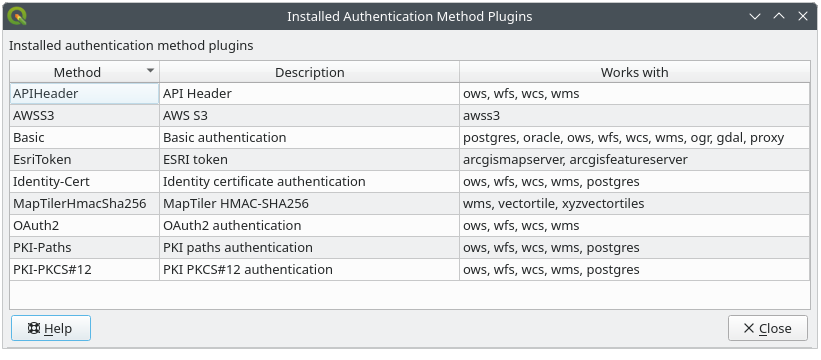
Fig. 21.8 Extensions d’authentification disponibles
Des plugins peuvent être créés pour les nouvelles méthodes d’authentification qui ne nécessitent pas la recompilation de QGIS. Étant donné que le support des plugins est actuellement limité au C++, QGIS devra être redémarré pour que le nouveau plugin déposé soit disponible pour l’utilisateur. Assurez-vous que votre plugin est compilé avec la même version cible de QGIS si vous avez l’intention de l’ajouter à une installation cible existante
21.1.5.1. API Header Authentication
The API Header authentication method allows you to connect to services
that require custom HTTP headers, such as API keys.
For example, if a WMS service requires an API key sent as a header
(e.g. X-API-KEY), you can use this method to provide it.
You can add one or more headers with the button; provide a
Header Name and Header Value for each entry. Use
to delete the selected header or the Clear
button to remove all entries.
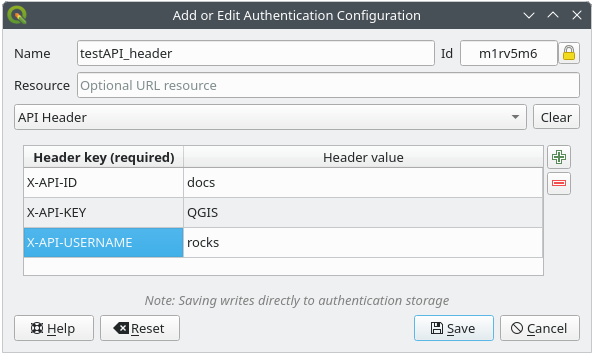
Fig. 21.9 API Header authentication configs
21.1.5.2. AWS S3 Authentication
The AWS S3 authentication method allows you to connect to Amazon S3 resources by providing a Name, Resource, Username, Password, and Region.
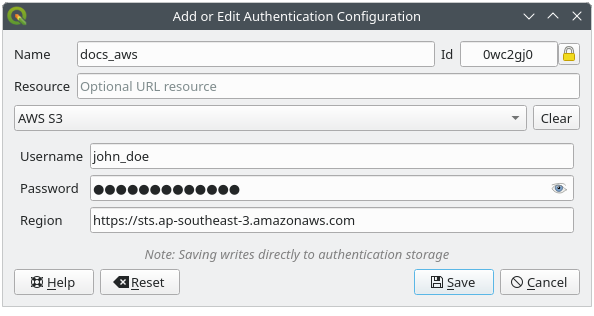
Fig. 21.10 AWS S3 authentication configs
21.1.5.3. Basic Authentication
The Basic authentication method is used for services that require standard HTTP authentication with a Username, Password and Realm.
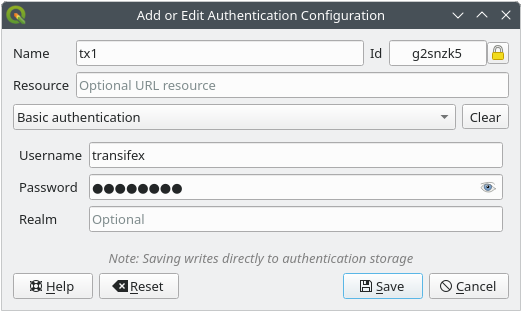
Fig. 21.11 Configuration Authentification basique HTTP
21.1.5.4. ESRI Token Authentication
The ESRI token authentication method is used for ArcGIS REST Servers that require token-based authentication.
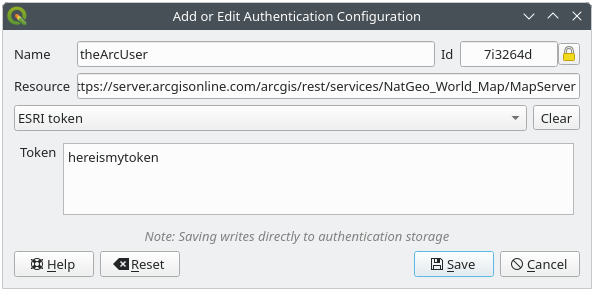
Fig. 21.12 Configuration Authentification ESRI Token
21.1.5.5. Identity certificate authentication
The Identity certificate authentication method allows you to connect using a client identity certificate.
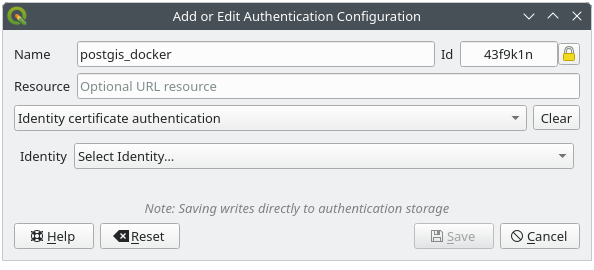
Fig. 21.13 Identity-cert authentication configs
21.1.5.6. MapTiler HMAC-SHA256 Authentication
The MapTiler HMAC-SHA256 authentication method is used to connect to MapTiler services that require HMAC-SHA256 authorization.
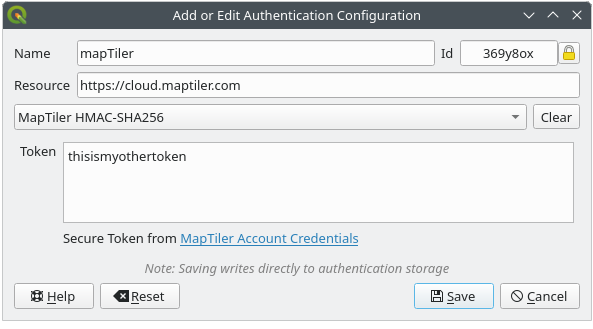
Fig. 21.14 MapTiler HmacSha256 authentication configs
21.1.5.7. OAuth2 Authentication
The OAuth2 authentication method is used to connect to services that require OAuth2 2.0 authorization, allowing secure access using client credential and token-based authentication.
It supports using localhost as the redirect host,
providing compatibility with services that do not accept http://127.0.0.1 redirects (for example, Microsoft SharePoint).
An advanced OAuth2 configuration option, Extra token header(s), allows attaching additional tokens returned by the OAuth2 token endpoint as HTTP(S) request headers.
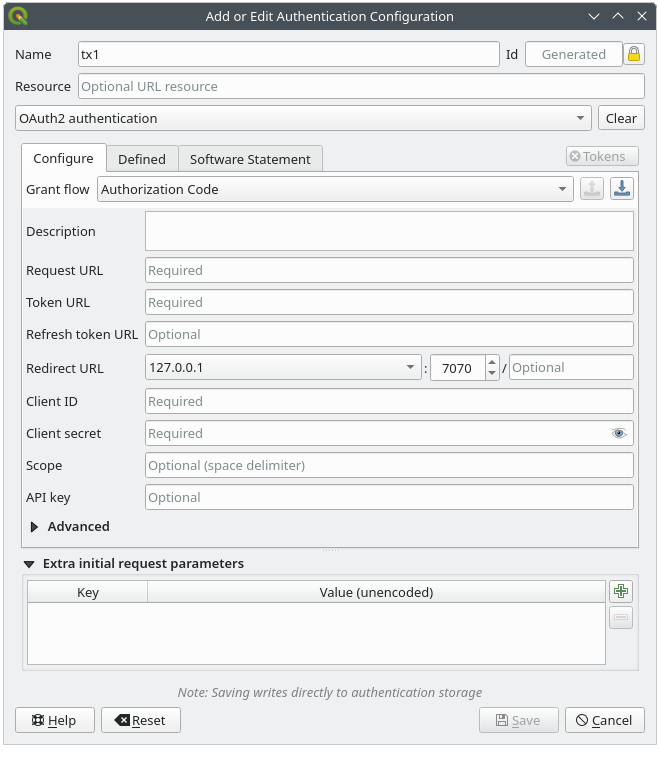
Fig. 21.15 Configuration Authentification OAuth2
21.1.5.8. PKI-Paths Authentication
The PKI-Paths authentication method allows you to connect using separate certificate and key files stored on your system.
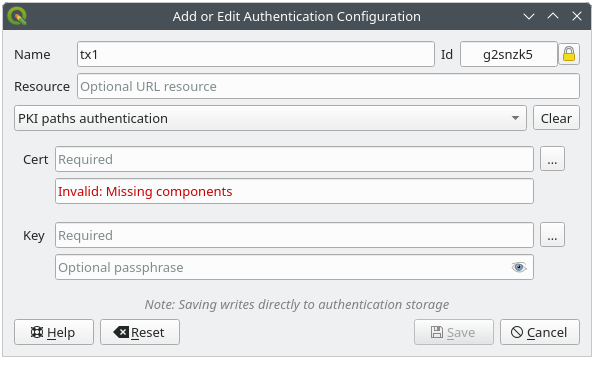
Fig. 21.16 Configuration Authentification par chemin PKI
21.1.5.9. PKI-PKCS#12 Authentication
The PKI-PKCS#12 authentication method allows you to connect using a single bundle file containing both the certificate and private key, with an optional passphrase for the key.
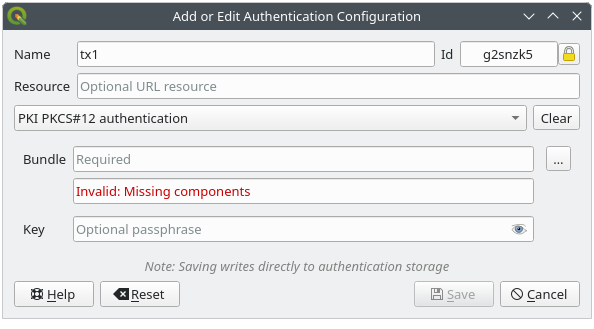
Fig. 21.17 Configuration Authentification PKI PKCS#12
21.1.6. Utilitaire et Mot de passe principal
A partir du menu Options () , dans l’onglet Authentification, plusieurs actions permettent de gérer le mot de passe principal, la base de données et les configurations d’authentification:
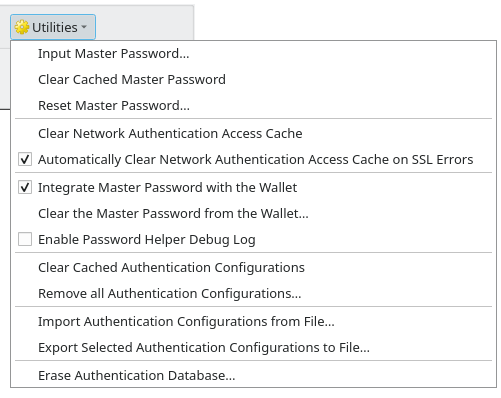
Fig. 21.18 Menu du bouton Utilitaires
Input master password…: opens the master password input dialog, independent of performing any authentication database command
Clear cached master password: unsets the master password if it has been set
Reset master password…: opens a dialog to change the master password (the current password must be known) and optionally back up the current database
Clear network authentication access cache: clears the authentication cache of all connections
Automatically clear network authentication access cache on SSL errors: the connection cache stores all authentication data for connections, also when the connection fails. If you change authentication configurations or certification authorities, you should clear the authentication cache or restart QGIS. When this option is checked, the authentication cache will be automatically cleared every time an SSL error occurs and you choose to abort the connection
Integrate master password with the Wallet: adds the master password to your personal Wallet/Keyring
Clear the master password from the Wallet…: deletes the master password from your Wallet/Keyring
Enable password helper debug log: enables a debug tool that will contain all the log information of the authentication methods
Clear cached authentication configurations: clears the internal lookup cache for configurations, used to speed up network connections. This does not clear QGIS’s core network access manager’s cache, which requires a relaunch of QGIS.
Remove all authentication configurations…: clears the database of all configuration records, without removing other stored records.
Import authentication configurations from file…: imports from an
.XMLfile details for creating custom authentication configurations.Export selected authentication configurations to file…: exports the selected items to a possibly encrypted
.XMLfile.Erase authentication database…: schedules a backup of the current database and complete rebuild of the database table structure. The actions are scheduled for a later time, to ensure that other operations, like project loading, do not interrupt the operation or cause errors due to a temporarily missing database.
21.1.7. Utiliser les configurations d’authentification
En règle générale, une configuration d’authentification peut être sélectionnée par une boîte de dialogue de configuration pour des services réseau (tels que WMS). Toutefois, le widget de sélection de configuration peut être intégré à chaque fois que l’authentification est nécessaire dans QGIS ainsi que dans les plugins PyQGIS ou C ++ tiers.
When using the selector, No authentication is displayed in the
pop-up menu control when nothing is selected, when there are no configurations
to choose from, or when a previously assigned configuration can no longer be
found in the database. Use the drop-down menu to select an existing authentication
configuration or press Create a new authentication configuration
to create a configuration you could use.
More details at Authentification.
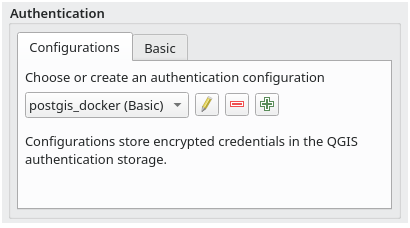
Fig. 21.19 Sélecteur de configuration d’authentification avec une configuration sélectionnée
21.1.8. Liaisons Python
All classes and public functions have sip bindings, except QgsAuthCrypto, since management of the master password hashing and auth database encryption should be handled by the main app, and not via Python.
Lorsque le mot de passe principal est tapé, l’API est disponible pour accéder aux configurations d’authentification de la base de données d’authentification, de façon similaire à ce que fait Firefox. Cependant, aucune protection contre l’accès à PyQGIS n’a été définie. Cela peut conduire à des problèmes lorsqu’un utilisateur télécharge/installe une extension ou une application PyQGIS malicieuse qui a accès aux identifiants.