Wichtig
Übersetzen ist eine Gemeinschaftsleistung Sie können mitmachen. Diese Seite ist aktuell zu 49.62% übersetzt.
25.3. QGIS Python Konsole
Wie Sie später in diesem Kapitel sehen werden, wurde QGIS mit einer Plugin-Architektur entwickelt. Plugins können in Python geschrieben werden, einer sehr bekannten Sprache in der Welt der Geodaten.
QGIS verfügt über eine Python-API (siehe PyQGIS Developer Cookbook für einige Code-Beispiele), um dem Benutzer die Interaktion mit seinen Elementen (Layern, Objekten oder Schnittstellen) zu ermöglichen. QGIS hat auch eine Python-Konsole.
The QGIS Python Console is an interactive shell for Python command executions.
It also has a Python file editor that allows you to edit and save your Python scripts.
Both console and editor are based on PyQScintilla2 package.
To open the console go to (Ctrl+Alt+P) or
click on the  Python Console icon in the Plugins toolbar.
25.3.1. Die interaktive Konsole
Die Konsole ist ein Python-Interpreter, mit dem Sie Python-Befehle ausführen können. Module von QGIS (analysis, core, gui, server, processing, 3d) und Qt (QtCore, QtGui, QtNetwork, QtWidgets, QtXml) sowie die Python-Module math, os, re und sys sind bereits importiert und können direkt verwendet werden.
Die interaktive Konsole besteht aus einer Symbolleiste, einem Eingabebereich und einem Ausgabebereich.
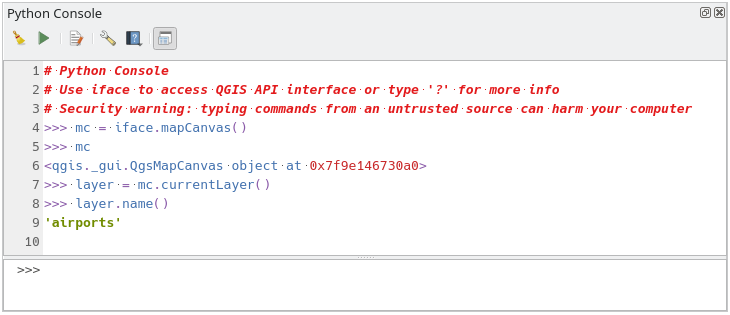
Abb. 25.17 Die Python-Konsole
25.3.1.1. Werkzeugleiste
Die Symbolleiste bietet folgende Werkzeuge:
 Konsole leeren, um den Ausgabebereich zu löschen;
 Befehl ausführen im Eingabebereich verfügbar: dasselbe wie das Drücken von Enter;
 Editor anzeigen: schaltet die Sichtbarkeit von Der Code-Editor um;
|Optionen| Optionen…: öffnet den Dialog zur Konfiguration der Python-Konsole in den Optionen;
 Hilfe… bietet ein Menü für den Zugriff auf verschiedene Dokumentationen:
Python-Konsole-Hilfe (diese Dokumentation)
 Dock Code Editor zum Andocken bzw. Abdocken des Bedienfeldes in der QGIS-Oberfläche
25.3.1.2. Eingabebereich
Die wichtigsten Objekte des Eingabebereichs der Konsole sind:
Code-Vervollständigung, Hervorhebung der Syntax und Calltips für die folgenden APIs:
Python
PyQGIS
PyQt5
QScintilla2
osgeo-gdal-ogr
osgeo-geos
Strg+Alt+Leertaste, um die Liste der automatischen Vervollständigung anzuzeigen, wenn sie in Python aktiviert ist;
Führen Sie Code-Schnipsel aus dem Eingabebereich aus, indem Sie Enter oder Befehl ausführen drücken;
Führen Sie Code-Schnipsel aus dem Ausgabebereich aus, indem Sie die Option Gewähltes eingeben aus dem Kontextmenü verwenden oder Strg+E drücken;
Navigieren Sie vom Eingabebereich aus mit den Pfeiltasten Auf und Ab durch den Befehlsverlauf und führen Sie den gewünschten Befehl aus;
Strg+Umschalt+Leertaste, um die Befehlshistorie anzuzeigen: ein Doppelklick auf eine Zeile führt den Befehl aus. Der Dialog Befehlsverlauf kann auch über das Kontextmenü des Eingabebereichs aufgerufen werden;
Speichern und löschen Sie den Befehlsverlauf. Der Verlauf wird in der Datei
console_history.txtunter dem aktiven Benutzerprofil-Ordner gespeichert;Geben Sie die folgenden speziellen Befehle ein:
?um eine Hilfe der Python-Konsole anzuzeigen_apium die QGIS C++ API Dokumentation zu öffnen oder_api(object)für eine spezifische Objektdokumentation (in QGIS C++ API oder Qt API Dokumentation)_pyqgisum die QGIS Python API Dokumentation zu öffnen oder_pyqgis(object)für eine spezifische Objektdokumentation (in der QGIS Python API oder Qt API Dokumentation)_cookbookum das PyQGIS Cookbook zu öffnen.!gefolgt von einem Befehl, um Shell-Befehle von der Python-Konsole auszuführen. Die Konsole startet einen Unterprozess und leitet dessen Ausgabe an den Python-Konsolen Ausgang weiter. Während der Unterprozess läuft, schaltet die Python- Konsole Input in den STDIN-Modus und leitet eingegebene Zeichen an den Kindprozess weiter. Dadurch ist es möglich, eine Bestätigung zu senden, wenn das untergeordnete Programm darum bittet. Wenn sich die Konsole im STDIN-Modus befindet, wird der Unterprozess durch Drücken von Strg+C beendet. Es ist auch möglich, das Ergebnis eines Befehls in einer Variablen mit der Syntaxvar = !cmdzu beeinflussen.>>> !echo QGIS Rocks! QGIS Rocks >>> !gdalinfo --version GDAL 3.10.3, released 2025/04/01 >>> !pip install black # Install black python formatter using pip (if available) >>> sql_formats = !ogrinfo --formats | grep SQL >>> sql_formats ['SQLite -vector- (rw+v): SQLite / Spatialite', ' MSSQLSpatial -vector- (rw+): Microsoft SQL Server Spatial Database', ' PostgreSQL -vector- (rw+): PostgreSQL/PostGIS', ' MySQL -vector- (rw+): MySQL', ' PGDUMP -vector- (w+v): PostgreSQL SQL dump']
Tipp
Ausgeführte Befehle aus dem Bedienfeld wiederverwenden
Sie können Codeschnipsel aus dem Bedienfeld ausführen, indem Sie einen Text auswählen und Strg+E drücken. Es spielt keine Rolle, ob der ausgewählte Text den Interpreter-Prompt enthält (>>>, ...).
25.3.2. Der Code-Editor
Use the Show Editor button in the Interactive Console to enable the editor widget.
It allows editing and saving Python scripts and offers advanced functionalities
to manage your code.
Depending on the enabled settings,
it provides various capabilities for easier code writing,
such as code completion, highlighting syntax and calltips for supported APIs.
Automatic indentation, parenthesis insertion, code commenting and syntax checking are also available.
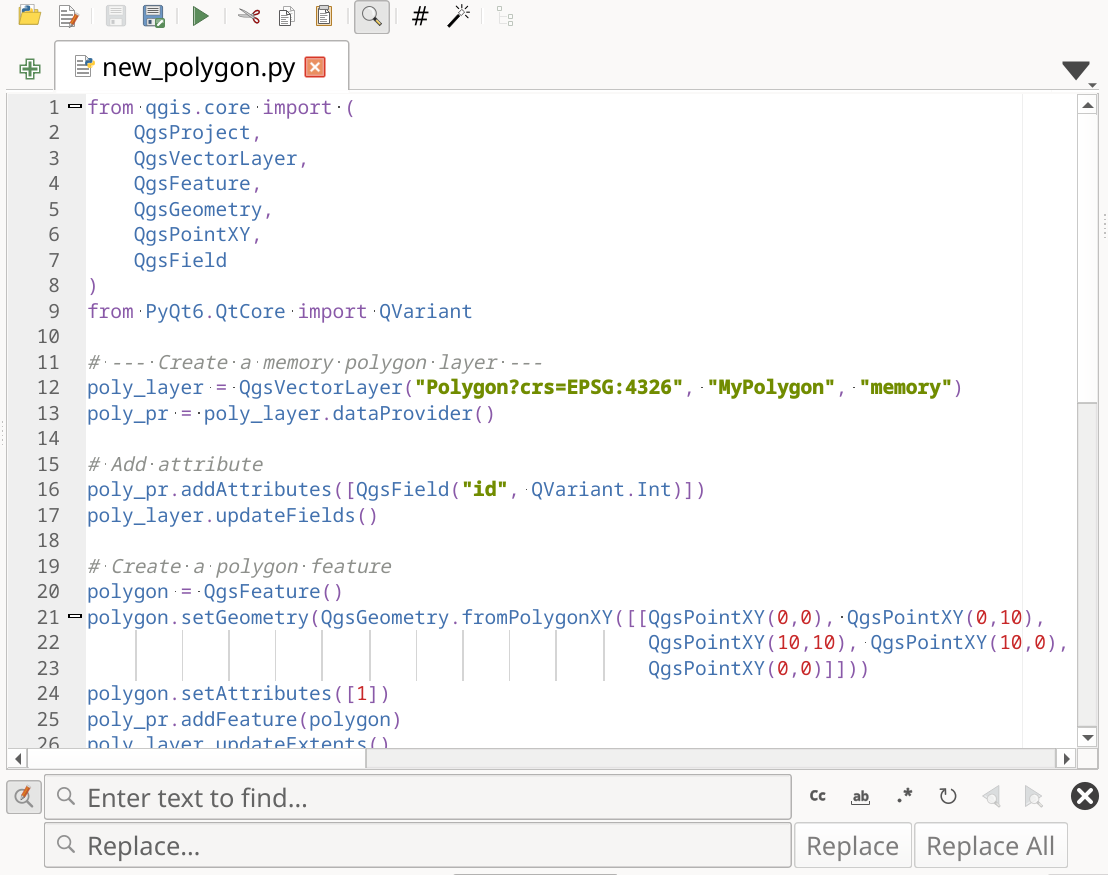
Abb. 25.18 Der Python-Konsolen-Editor
The code editor area allows to simultaneously work on different scripts, each in a specific tab.
Press  New editor to add a new tab.
You can run partially or totally a script from the Code Editor
and output the result in the Interactive Console output area.
New editor to add a new tab.
You can run partially or totally a script from the Code Editor
and output the result in the Interactive Console output area.
Tipp
Press Ctrl+Space to view the auto-completion list.
At the top of the dialog, a toolbar provides access to a few commands. Right-clicking the editor area provides some more options. All available tools are described in the following table.
Tool name |
Function |
Location |
|---|---|---|
|
Loads a Python file in the code editor dialog, as a new tab |
Werkzeugleiste |
|
Opens a saved Python script in the default external program set for Python file editing |
|
|
Saves the current script |
|
|
Saves the current script as a new file |
|
|
Executes the whole script in the Interactive console
(this creates a byte-compiled file with the extension |
Toolbar & Contextual menu |
|
Attempts to display help on the selected string (class, method, object,…) in its corresponding API documentation |
Contextual menu |
|
Executes in the Interactive console the lines selected in the script |
Toolbar & Contextual menu |
|
Cuts selected text to the clipboard |
|
|
Copies selected text to the clipboard |
|
|
Pastes a cut or copied text |
|
|
Allows to search and replace a text in the script.
|
|
|
Comments out or uncomment selected lines, by adding or removing |
|
|
Allows to manually apply various formatting rules (sort imports, indentation, line length,…) to the code, following user-defined settings. This may require installation of additional Python modules. |
|
|
Shows and hides a dedicated browser with a tree structure for classes and functions available in the script. Click an item for a quick access to its definition. The tool requires an activation from the Python settings - Run and Debug. |
|
Hide editor |
Hides the Python code editor block.
To make it visible again, press |
Contextual menu |
|
Browses the code and reports syntax errors, such as missing parenthesis, colons, wrong indentation,… |
|
|
Undoes the latest action |
|
|
Reverts undone actions to a more recent |
|
Select all (Ctrl+A) |
Selects the whole script |
|
|
Shares the script as a Secret Gist or Public Gist on GitHub, provided a GitHub access token. |
|
|
Opens the Python dialog. |


