Important
La traduction est le fruit d’un effort communautaire auquel vous pouvez vous joindre. Cette page est actuellement traduite à 45.80%.
25.3. La Console Python de QGIS
Comme vous le verrez plus loin dans ce chapitre, QGIS a été conçu avec une architecture de plugin. Les plugins peuvent être écrits en Python, un langage très célèbre dans le monde géospatial.
QGIS apporte une API Python (voir le Livre de recettes PyQGIS pour obtenir un exemple de code) pour permettre à l’utilisateur d’interagir avec ses objets (couches, entités ou interface). QGIS possède également une console Python.
The QGIS Python Console is an interactive shell for Python command executions.
It also has a Python file editor that allows you to edit and save your Python scripts.
Both console and editor are based on PyQScintilla2 package.
To open the console go to (Ctrl+Alt+P) or
click on the  Python Console icon in the Plugins toolbar.
25.3.1. La console interactive
The console is a Python interpreter that allows you to execute Python commands. Modules from QGIS (analysis, core, gui, server, processing, 3d) and Qt (QtCore, QtGui, QtNetwork, QtWidgets, QtXml) as well as Python’s math, os, re and sys modules are already imported and can be used directly.
La console interactive est composée d’une barre d’outils, d’une zone d’entrée et de sortie.
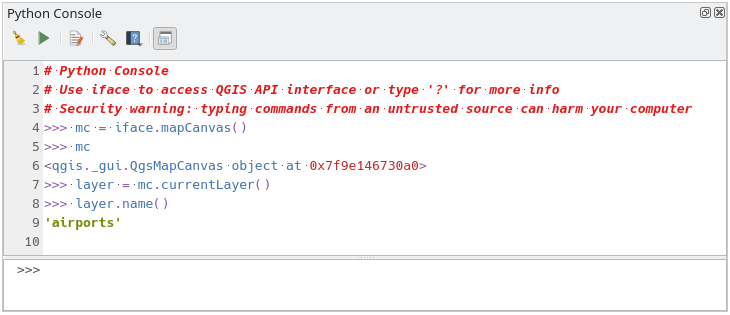
Fig. 25.17 La console Python
25.3.1.1. Barre d’outils
La barre d’outil propose les outils suivant:
 Effacer la console pour effacer la zone de sortie ;
 Exécuter la commande disponible dans la zone de saisie : identique à la touche Entrée ;
 Afficher l’éditeur : bascule la visibilité de L’éditeur de code ;
 Options… : ouvre une fenêtre pour configurer les propriétés de la console ;
 Help… provides a menu to access various documentation:
Python Console Help (the current page)
 Dock Code Editor to dock or undock the panel in QGIS interface
25.3.1.2. Input area
The Console input area main features are:
Auto-complétion du code, coloration et rappels syntaxiques pour les APIs suivantes :
Python
PyQGIS
PyQt5
QScintilla2
osgeo-gdal-ogr
osgeo-geos
Ctrl+Alt+Space pour voir la liste d’auto-complétion si elle est activée dans Python settings ;
Exécutez des fragments de code depuis la zone de saisie en les tapant puis en appuyant sur Entrée ou Exécuter la Commande ;
Exécutez des extraits de code à partir de la zone de sortie en utilisant Entrez la sélection dans le menu contextuel ou en appuyant sur Ctrl+E ;
Parcourez l’historique des commandes dans la zone de saisie en utilisant les touches directionnelles Haut et Bas et exécutez la commande que vous voulez ;
Ctrl+Shift+Espace pour voir l’historique des commandes: un double clic sur une ligne exécutera la commande. La boîte de dialogue Historique des Commandes peut aussi être ouverte depuis le menu contextuel ou la zone de saisie ;
Sauvegarder et vider l’historique des commandes. L’historique sera sauvegardé dans le fichier
console_history.txtdu profil utilisateur en cours;Type the following special commands:
?to show a help of the Python Console_apito open QGIS C++ API documentation or_api(object)for a specific object documentation (in QGIS C++ API or Qt API documentation)_pyqgisto open QGIS Python API documentation or_pyqgis(object)for a specific object documentation (in QGIS Python API or Qt API documentation)_cookbookto open PyQGIS Cookbook.!followed by a command to execute Shell commands from the Python Console. The console will start a subprocess, and forward its output to the Python Console Output. While the subprocess is running, the Python Console Input switches to STDIN mode and forwards entered character to the child process. This makes it possible to send confirmation when the child program asks for it. When the Console is in STDIN mode, pressing Ctrl+C kills the subprocess. It is also possible to affect the result of a command to a variable with the syntaxvar = !cmd>>> !echo QGIS Rocks! QGIS Rocks >>> !gdalinfo --version GDAL 3.10.3, released 2025/04/01 >>> !pip install black # Install black python formatter using pip (if available) >>> sql_formats = !ogrinfo --formats | grep SQL >>> sql_formats ['SQLite -vector- (rw+v): SQLite / Spatialite', ' MSSQLSpatial -vector- (rw+): Microsoft SQL Server Spatial Database', ' PostgreSQL -vector- (rw+): PostgreSQL/PostGIS', ' MySQL -vector- (rw+): MySQL', ' PGDUMP -vector- (w+v): PostgreSQL SQL dump']
Astuce
Réutilisez des commandes déjà exécutées depuis la zone de sortie
Vous pouvez exécuter des fragments de code depuis la zone de sortie en les sélectionnant et en appuyant sur Ctrl+E. Peu importe que le texte sélectionné contienne les caractères d’attente de l’interpréteur (>>>,``…``).
25.3.2. L’éditeur de code
Use the Show Editor button in the Interactive Console to enable the editor widget.
It allows editing and saving Python scripts and offers advanced functionalities
to manage your code.
Depending on the enabled settings,
it provides various capabilities for easier code writing,
such as code completion, highlighting syntax and calltips for supported APIs.
Automatic indentation, parenthesis insertion, code commenting and syntax checking are also available.
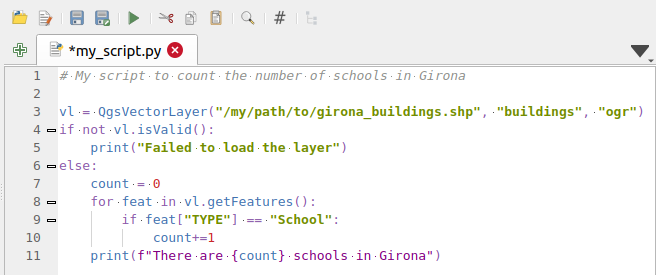
Fig. 25.18 L’éditeur de console Python
The code editor area allows to simultaneously work on different scripts, each in a specific tab.
Press  New editor to add a new tab.
You can run partially or totally a script from the Code Editor
and output the result in the Interactive Console output area.
New editor to add a new tab.
You can run partially or totally a script from the Code Editor
and output the result in the Interactive Console output area.
Astuce
Press Ctrl+Space to view the auto-completion list.
At the top of the dialog, a toolbar provides access to a few commands. Right-clicking the editor area provides some more options. All available tools are described in the following table.
Tool name |
Function |
Localisation |
|---|---|---|
|
Loads a Python file in the code editor dialog, as a new tab |
Barre d’outils |
|
Opens a saved Python script in the default external program set for Python file editing |
|
|
Saves the current script |
|
|
Saves the current script as a new file |
|
|
Executes the whole script in the Interactive console
(this creates a byte-compiled file with the extension |
Toolbar & Contextual menu |
|
Attempts to display help on the selected string (class, method, object,…) in its corresponding API documentation |
Contextual menu |
|
Executes in the Interactive console the lines selected in the script |
Toolbar & Contextual menu |
|
Cuts selected text to the clipboard |
|
|
Copies selected text to the clipboard |
|
|
Pastes a cut or copied text |
|
|
Allows to search and replace a text in the script.
|
|
|
Comments out or uncomment selected lines, by adding or removing |
|
|
Allows to manually apply various formatting rules (sort imports, indentation, line length,…) to the code, following user-defined settings. This may require installation of additional Python modules. |
|
|
Shows and hides a dedicated browser with a tree structure for classes and functions available in the script. Click an item for a quick access to its definition. The tool requires an activation from the Python settings - Run and Debug. |
|
Hide editor |
Hides the Python code editor block.
To make it visible again, press |
Contextual menu |
|
Browses the code and reports syntax errors, such as missing parenthesis, colons, wrong indentation,… |
|
|
Undoes the latest action |
|
|
Reverts undone actions to a more recent |
|
Select all (Ctrl+A) |
Selects the whole script |
|
|
Shares the script as a Secret Gist or Public Gist on GitHub, provided a GitHub access token. |
|
|
Opens the Python settings dialog. |


